

SciShield ChemTracker Chemical Inventory Management
OSHA’s Hazard Communication Standard, also commonly known as the Right-to-Know, requires that employers develop, implement, and maintain a written hazard communication program which includes a list of the hazardous chemicals known to be present (29 CRF 1910.1200, specifically 1910.1200(e)(1)(i)). In agreement with this requirement, the Johns Hopkins Chemical Hygiene Plan (HSE706) requires that Principal Investigators, Supervisors, and other Responsible Parties maintain accurate inventories of hazardous chemicals in the workplace. A complete chemical inventory ensures that chemical hazards can be effectively managed and communicated to laboratory staff, visitors, and emergency responders. Additionally, the State of Maryland follows International Building Code (IBC) and National Fire Protection Agency (NFPA) codes and standards, which limit the maximum allowable quantities (MAQ) of hazardous substances that can be kept in buildings.
The department of Health, Safety, and Environment (HSE) has enabled the SciShield ChemTracker chemical inventory module as a software solution for chemical inventory management. The ChemTracker inventory is linked to a lab’s profile and requires identification, room-level location, and quantities. The module includes tools for annual reconciliation, easy reporting for various regulatory needs, and recommended storage codes for database-linked chemicals based on the Stanford Chemical Storage Group recommendations.
Chemical inventories can be uploaded in bulk as a one-time service from HSE, or entered manually. The identification entry field is linked to SciShield’s robust database of previously identified chemicals and mixtures, helping users to find products from specific suppliers when entering containers into inventory.
Initial Instructions
If you already have an accurate and up to date chemical inventory, with the minimum required elements listed below, you may send it directly or copy the information into the JH ChemTracker Import Template. Send your file or the filled template to [email protected] to the attention of Chemical Safety.
If you do not have an accurate and up to date chemical inventory, use the Import template to collect the inventory. More information can be maintained in ChemTracker, but the minimum requirements include the Principal Investigator name (used for the Group Name on the template), and:
- CAS number and/or Chemical Name – at least one of these must be given for each container
- Building Name and Room number where chemical is located
- Amount as a numerical quantity (eg. 1, 50, 100)
- Unit of measurement (eg. Mg, g, kg, ml, L, tablets, kits, package)
- Number of containers on hand
See the FAQ below for common questions. If you do not find your answer or need further clarification, reach out to [email protected] ATTN: Chemical Safety.
How to Access ChemTracker
The ChemTracker module will appear in the top row of tabs on your lab profile. Initial inventories can be uploaded in bulk using the JH ChemTracker Import Sheet. Individual chemicals can be added, deleted, or edited within the module.

FAQs
Why use a centralized chemical inventory system?
ChemTracker allows Johns Hopkins to meet regulatory requirements by OSHA, the NPFA, and IBC, ensuring that all labs have current chemical inventories and allowing tracking of aggregate building quantities. Knowing the types and total quantities of hazardous chemicals in each building allows us to organize more effective emergency response, enhance hazard communication and highlight higher hazard chemicals for safer storage initiatives. These are part of a proactive strategy for chemical and laboratory safety.
For labs, having a digital inventory accessible to multiple lab members decreases manual manipulation of spreadsheets and reduces loss of data when members move or leave labs. ChemTracker includes a reconciliation tool that can and should be used to update your chemical inventory on an annual basis and is accessible on mobile devices.
From an environmental sustainability and cost reduction standpoint, maintaining accurate inventories reduces excess ordering and helps keep track of excess chemicals in storage.
Is it mandatory to use ChemTracker for my inventory?
It is mandatory for every laboratory to maintain an inventory of hazardous chemicals. In the past, HSE discussed chemical inventories with your laboratory and reviewed inventories posted on lab outer doors, but your inventory was not kept in a shared digital location for current review. Maintaining an accurate chemical inventory in ChemTracker will be mandatory beginning sometime in late 2025; HSE encourages labs to be proactive in collecting and reviewing submissions prior to that time.
Which items must be included in my ChemTracker inventory?
Any chemical that poses a physical, environmental, or health hazard. If the container displays one of the chemical hazard symbols, it should be listed on the inventory. This includes any amount of the following:
- Flammable substance
- Corrosive substance
- Acute toxin, reproductive hazard
- Carcinogen, mutagen or teratogen
- Highly reactive substance (pyrophoric, water-reactive or potentially explosive)
- Compressed gas
- Controlled substances (as defined by the DEA Diversion Control Division)
Mixtures should also be evaluated using this scheme. If a mixture is identified as belonging to one or more of these categories, it should be included in the ChemTracker inventory. SciShield’s database includes many commercially available mixtures so that these can be easily added. Mixtures made in-house should have all of their components listed with approximate concentrations of hazardous components. All applicable hazard categories should be selected.

Which items may be excluded from my ChemTracker inventory?
Products with no chemical hazard (such as water, growth media, glucose, sucrose, starches, amino acids, glass beads) or biological materials (infectious substances, cell cultures, bacteria, select agents), or radioactive materials.
Although it is not mandatory to include these types of materials, you may use ChemTracker to keep track of them, if you wish. If you choose to track non-hazardous chemicals, biohazards, or other non-chemical hazards in your ChemTracker inventory, it is important that you do not assign them to a hazard group (such as flammable or reactive). HSE uses aggregate data from all inventories to track quantities of hazards in each building and incorrectly assigning chemical hazard categories to non-hazardous chemicals, biohazards, or other non-chemical hazards will distort this data.
What about novel compounds, unknowns and chemical waste containers?
Novel compounds that are synthesized in the laboratory should be added to the ChemTracker inventory if there are known hazards associated with them. If hazards are later identified for a chemical that was previously left out of the inventory, that compound should be added when those hazards are identified. These compounds will not be available in the SciShield chemical database but can be added to the inventory as “unlinked” containers and information can be manually added to the entries.
If laboratories follow good labeling practices, occurrences of unknown chemicals should be rare. However, if a container should end up without a label or an unknown compound is unintentionally synthesized during an experiment, the best options are to identify the compound or dispose of it. HSE can work with the laboratory to identify the chemical and, if necessary, sending a sample to an analytical laboratory for identification. If a laboratory intends to keep an unknown synthesized compound for further testing, it should be treated as any other novel compound (i.e. added to the inventory when/if hazard classes are identified and updated as new information is discovered).
Chemical waste being accumulated in containers for disposal should not be included in the ChemTracker inventory. These containers should be labeled appropriately as hazardous waste and disposed of as soon as possible when they are filled or no longer needed.
How should labs track bottles in use? Do remaining amounts need to be measured after each use?
For the purposes of the ChemTracker inventory, use the vendor supplied quantity for the container. For example, 100 mL of a reagent was purchased but small quantities are used over several experiments. Do not measure the remaining quantity after each use, simply list the quantity as 100 mL in ChemTracker until the reagent is gone and the bottle is removed from the inventory.
For chemicals/mixtures which are used up and replaced frequently, such as 70% ethanol, the ChemTracker inventory should list the typical amount and size of containers that are on-hand at a given time.
How often do labs need to update ChemTracker?
Chemical inventories should be updated as chemicals and hazards enter and exit the lab. EHS recommends a full inventory reconciliation once each year. The ChemTracker module has a reconciliation tool to facilitate this process.
What should I do with chemicals found during inventory reconciliation (or initial upload) that are expired or my lab no longer wants to keep?
Unwanted or expired chemicals should be submitted online as hazardous waste . Disposal of unknown hazardous waste may carry associated charges, due to the cost of identifying the waste material prior to disposal.
Who will have access to my ChemTracker inventory?
Your ChemTracker inventory will be accessible only to you, your group compliance liaisons (lab managers) and HSE. Your department may request or already be granted access to your inventory. Additionally, you may grant edit rights to anyone in your SciShield lab member list.
I have chemicals I no longer want, what should I do?
Any unwanted or unusable chemicals can be submitted for disposal through our online Chemical Waste Disposal Form. Please separate the items from chemicals in use, away from other hazards, and in suitable secondary containment if necessary.
If you have a large pickup, a lab clean-out, or have specific questions, reach out to [email protected] ATTN: Environmental Safety with specifics. If relevant, include pictures and identification. Note that bulk pickups and consultations are scheduled around the regular waste schedule; please be patient with our team.
Wait, don’t we have ChemWatch already? What about Quartzy, LabManager, Avantor, GoogleSheets, or internal spreadsheets?
You may already be familiar with ChemWatch, the safety data sheet (SDS) repository that HSE has subscribed to for many years. ChemWatch provides access to over 250,000 GHS-compliant, ChemWatch-authored SDS, with data gathered and stored from over 60 million vendor SDS. It may be used to collect a list of chemicals and generate a manifest report with a summary of information, but is generally not used to collect quantities of chemicals in aggregate and is not tied to an inventory of building spaces.
Similarly, other chemical inventory management software, or lab-maintained spreadsheets are not tied to the inventory of building spaces, is often not accessible by HSE, and cannot be easily summarized on a building level.
As such, for collection of quantified chemical inventories, HSE will require that an inventory of chemicals, including quantities and specific lab locations, be maintained in ChemTracker. Here it is tied to your lab profile, your lab spaces, and is easily accessible by your registered lab members.
Your lab may choose to keep your day-to-day inventory in another software system or Excel sheet, but HSE asks that you update the ChemTracker inventory at least annually to reconcile quantities.
I’m still confused about whether I need to inventory a substance
If you are unsure if your chemical, item, or kit needs to be inventoried, please reach out to hseinfo@jhmi ATTN: Chemical Safety with a list of items for review. As a resource, see the table below for previously reviewed items and kits.
I don’t have access to my lab’s ChemTracker
Lab members may be given access to view or manage the ChemTracker inventory. Most labs have defaulted so all lab members can view the ChemTracker inventory. If you are assigned to manage your inventory but cannot access it, please ask your Principal Investigator or lab manager to edit your permissions on the Members tab from your SciShield profile.
- Click on the Members tab

- Click on edit

- Check the View or Manage Group ChemTracker inventory boxes (or both)

- Make sure to click on Save

How To Use ChemTracker
Login to SciShield
Login to SciShield at https://jhu.scishield.com/
- If you receive a message indicating that you do not have access,
- If you are a Principal Investigator, reach out to [email protected] ATTN Chemical Safety and note that you do not have a SciShield profile. We will create a profile for you to complete.
- If you are not a Principal Investigator, ask your PI and/or lab manager to access the Members tab to add you to your lab’s profile and give you access
- Navigate to the ChemTracker tab at the top of the page.
Alternatively, you can expand your lab’s tab in the left hand navigation and choose ChemTracker.

ChemTracker Inventory Page Overview
- View Inventory- see a summary of active containers in your lab
- Each container will appear on its own line
- You may need to use your browsers scroll tab to scroll to the right to see all columns. You can drag columns around for your preferred view
- Explore the Advanced Filters for additional options
- Add Inventory- add containers manually
- Totals- see a summary of total quantities for each chemical or hazard class, also able to be filtered
- Bulk Edit- delete or move multiple containers at a time (eg. During a lab relocation, renovation, or clean-out)
- Reconciliation– perform an annual reconciliation, comparing the inventory list with actual on-hand containers to ensure ChemTracker is up to date. Check and update containers, move containers, manage deleted chemicals, and mark chemicals as up to date. See SciShield videos.
- Find Other Chemicals– can be used to find chemical containers in other labs, if the other labs have allowed visibility
Adding Chemicals to ChemTracker
If you already have an accurate and up to date chemical inventory, with the minimum required elements listed below, you may send it directly or copy the information into the JH ChemTracker Import Template. Send your file or the filled template to [email protected] to the attention of Chemical Safety.
More information can be maintained in ChemTracker, but the minimum requirements include the Principal Investigator name (used for the Group Name on the template), and:
- CAS number and/or Chemical Name – at least one of these must be given for each container
- Building Name and Room number where chemical is located
- Amount as a numerical quantity (eg. 1, 50, 100)
- Unit of measurement (eg. Mg, g, kg, ml, L, tablets, kits, package)
- Number of containers on hand
For individual containers, continue as below.
From your lab’s profile, click on ChemTracker, then on Add Inventory.
- Type the chemical name, CAS number, or product description into the chemical search bar and select the appropriate listing. ChemTracker will suggest chemicals or mixtures that are already in the database. If you do not see your particular chemical or mixture suggested, choose “None of the above.”
- Location, Amount, Units, and Container count are required.
- If your lab’s location does not appear in the pulldown list, that space is not assigned to your profile. Reach out to [email protected] ATTN Chemical Safety to have the space added.
- A barcode or RFID scanner may be used for lab-generated labels.
- Additional details for the containers may be entered if available but are not required.
- When finished, select Submit to finish adding the containers to the inventory.

Performing an inventory reconciliation
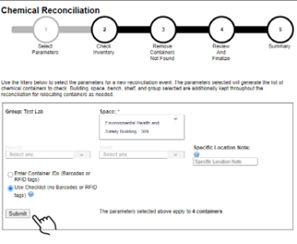
1. From your lab’s profile, click on ChemTracker, then Reconciliation then Start a New Reconciliation.

2. Select the building and space to be reconciled and click Submit to see a list of applicable containers. If applicable, lab(s) and/or specific location(s) can also be specified for reconciliation. Labs should generally select the “Use Checklist” method. Only labs using custom barcodes or RFID tags to track their containers should select the “Enter Container IDs” method.
3. Containers which are still in use or storage should be marked as “Found” and will be retained in the ChemTracker inventory. Determine which containers on the list are present and mark them as “Found.” Once you have completed your review of a space, click Next. The example below shows that three 1L bottles of 70% Ethanol and one 4L bottle of 95% Ethanol were found during this reconciliation.
***Please ensure that each container that you want to keep in your inventory has been checked as “FOUND” on the left-hand side. If this box is not checked, the container will be deleted from your inventory.***

This next page will show you which containers were not found in the previous step. You can now remove them from your ChemTracker inventory by selecting them here and clicking Next
Select which containers should be removed from the ChemTracker inventory (generally, all containers which were not found) and confirm by clicking Next

Finalize the inventory reconciliation on the next page to apply the updates. Your ChemTracker inventory will now be automatically updated for only the items that were found during reconciliation.

How do I edit the state of a chemical listing? (solid/liquid/gas)?
For chemicals linked to the chemical database, the physical state is built into the database itself and therefore cannot be changed. Instead, choose another chemical from the database, or add it as an unlinked chemical to add the physical state manually. If you cannot alter the state of your listed chemical, please contact HSE.
How do I edit just one item (not bulk editing)?
Single containers can be edited by navigating to “View Inventory” within the “ChemTracker” section for their lab, then scrolling to the right and clicking the “edit” link next to the container. There is also an icon (square with an arrow) in the top right corner of the inventory table that pops out the page in order to view more columns in one view.
Can we make the specific location note visible by default?
Unfortunately, the specific location note is only visible once you expand the advanced options, it cannot be viewed by default.
How do I assign hazard groups to unlinked chemicals?
For chemicals linked to the database, hazard groups are also built into the chemical database per chemical type. For unlinked chemicals, only HSE ChemTracker administrators can edit this information.
How do I move a chemical from one location to another?
To move a single container, click the “Edit” link for the container from the “View Inventory” page, then select the updated space within the “Location (space)” field. To move multiple containers at once, use the “Bulk Edit” tool to select multiple containers, scroll to the bottom right and click the “Edit selected containers” button, then choose the updated room from the drop-down. The Lab level or HSE-level reconciliation tool may also be used to bulk update the location of many containers at once.